Missing "Add News" (submit) button

Author reported missing "Add News" button.
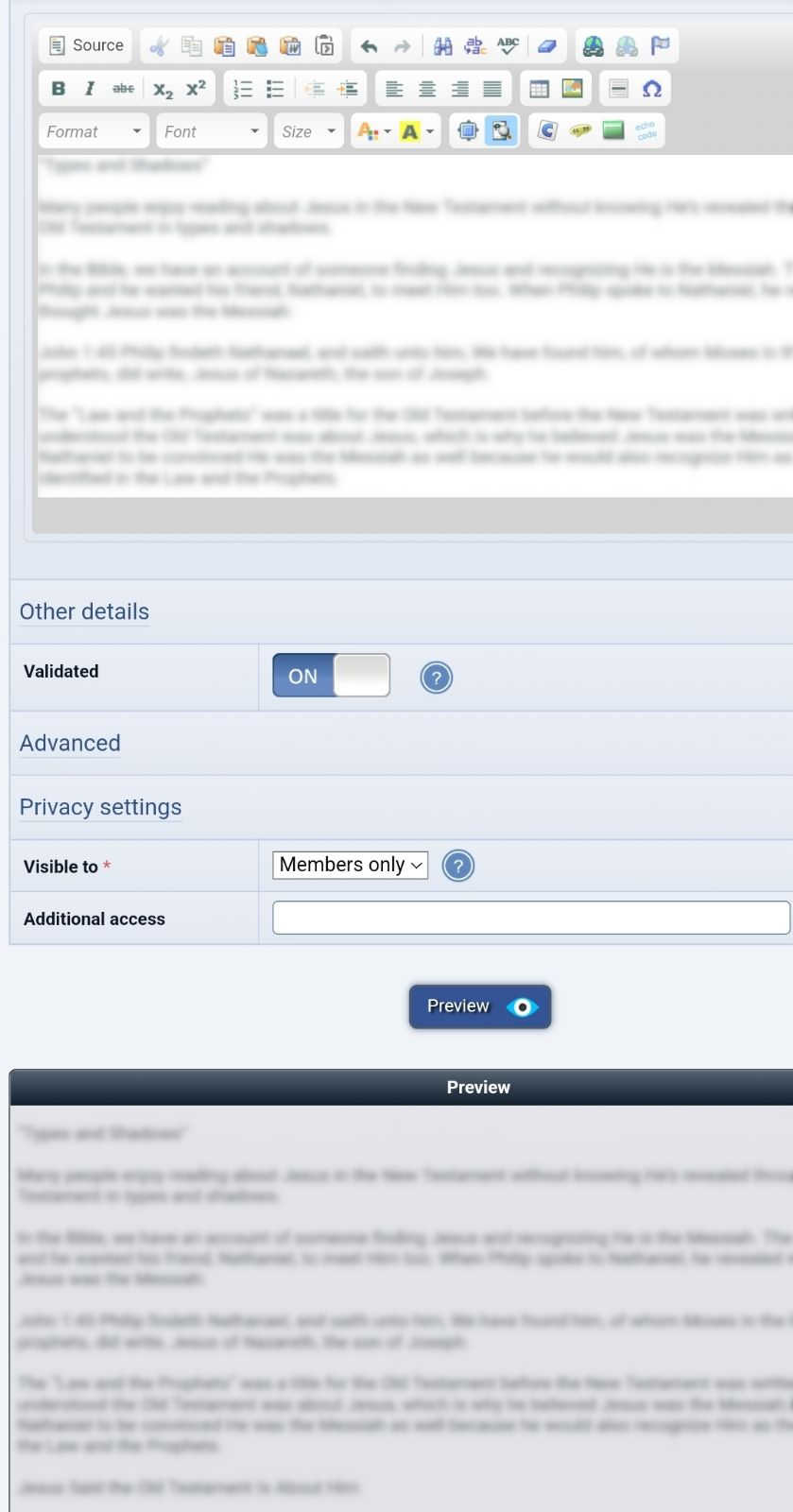
I have an author on my site that reported the "Add News" button was missing for them. As the screenshot below shows, they only have the "Preview" button. When I masquerade as this user I see the same thing.Any idea what may cause this behavior or how to correct it? Is this because of a misconfigured permission?




Admin Zone > Setup > Configuration > Feature options > Preview > Let members force themselves to preview first
OTTOMH If this option is on, there's an option in each member's settings to say whether they need to Preview first.
Admin Zone > Setup > Configuration > Feature options > Preview > Let members force themselves to preview first
OK, This was the critter that was causing the issue. When this setting is active AND the user has the preview first box checked, even after previewing the news post the "Add News" button does not appear. It seems as though this is a bug. I'll simply deactivate this setting since they will still be able to preview before sending anyway.
Thank you very much for the pointer. The situation has been resolved.

Automated fix message
This issue has now been filed on the tracker as issue #4848, with a fix.PDStig said
Hello,
Some small edits are still being made here and there to templates. It's possible there might be a release, maybe the first RC release, where a lot of template changes are made, to conform them to WCAG standards better. All these edits are made in templates/css/js folders.When you use the template editor, if you have a *_custom file, that is loaded in. Else, the original file is loaded in (but changes are saved as a *_custom file). *_custom files are maintained between versions / do not change unless you change them.
Be aware when using the template editor, it generally loads in the full original file and saves it with your edits into the custom file. When this happens, the custom file is used, but *not* the original. So any updates to the original file will need to be merged into your custom one. The "file integrity scan" tool in the upgrader usually warns you of this; it will tell you that you have overrides which have originals that are newer, therefore you likely need to update the overrides. And it will list the applicable files.
If you want more flexible (but power-user) functionality, instead of saving the entire contents of the original file into the custom one, start with a blank file (e.g. erase everything in the editor). Then, add this to the top:
(for CSS files)
Code
/*{+START,INCLUDE,global,.css,css}{+END}*/(For JS files)
Code
/*{+START,INCLUDE,global,.js,js}{+END}*/(For template files)
Code
{+START,INCLUDE,EXAMPLE,.tpl,templates}{+END}The parameters to the directive are (all may be blank or left out):
- the codename of the template to include (e.g. EXAMPLE)
- the file extension of the template to include, including the dot (defaults to .tpl)
- the subdirectory type of the template to include (defaults to templates) (e.g. templates, css, js)
- the theme to include from (usually leave blank and Composr will work it out / use the default theme)
- whether to force the non-overridden file (defaults to 0 unless the template being included has the same name as the template the INCLUDE is in; this is the case in what you are doing)
Then, after adding that line at the top, add your customisations / overrides below it. Note you will still need to check these files regularly between updates (file integrity scan will let you know... if no changes need to be made, simply re-save the file without any changes so modification time is updated).
Doing this will ensure everything, except your overridden code, is still automatically updated between version updates. This is unlike if you were to copy the entire original over to the custom / not use the INCLUDE at the top, where you will have to manually merge the changes in every time.
See https://composr.app/docs/tut-tempcode.htm for more information (Scroll down to INCLUDE directive).